
Protect access to your account
Use device authentication and keep control of your sign-in sessions.
Use your own sign-in
- Keep verification codes private. Invite colleagues through Team so each person uses their own account.
- Keep your verified email or WhatsApp contact up to date in Profile.
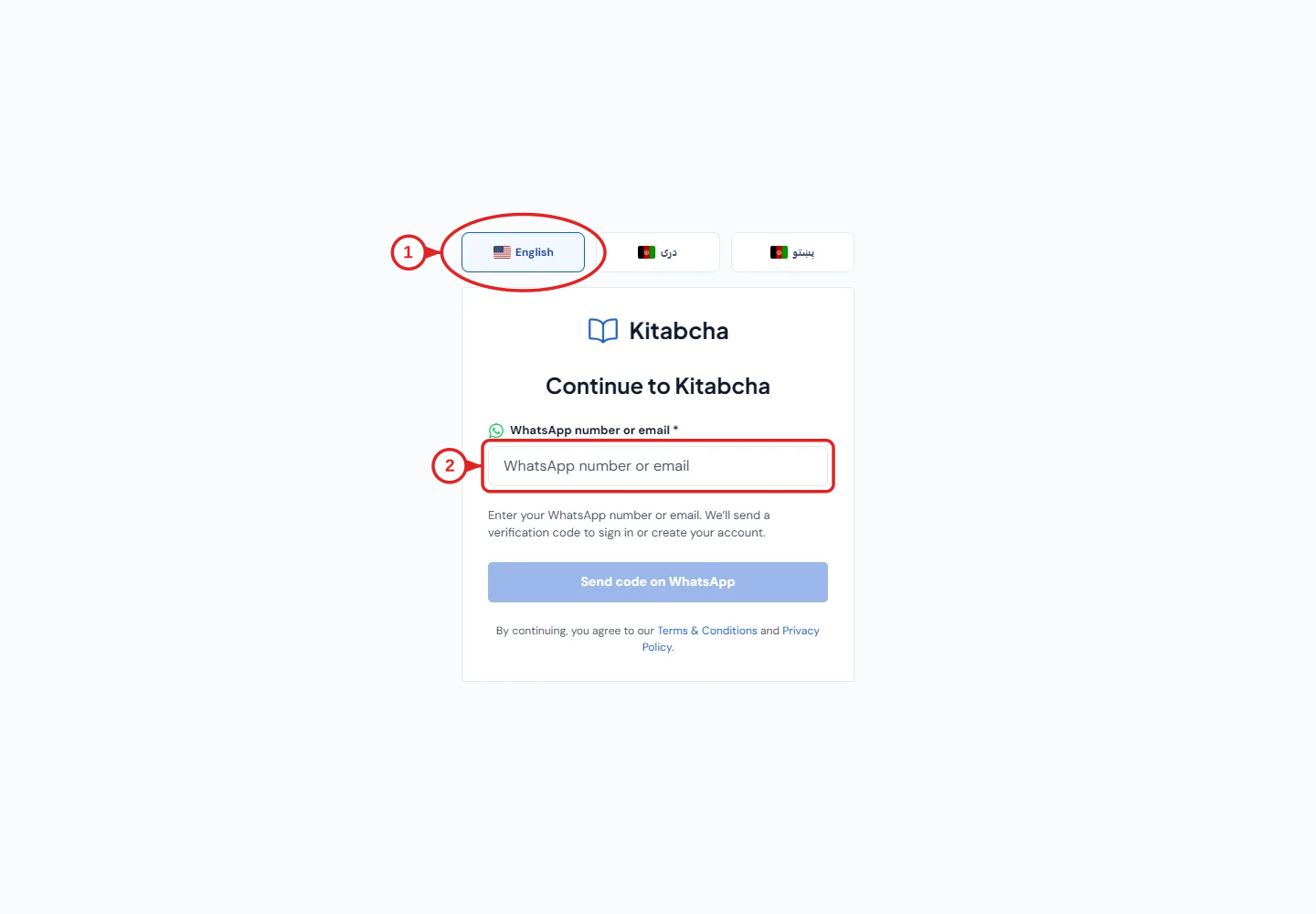
- Choose your language
- Enter email or WhatsApp
Enable app lock on a phone
- Open Settings → Security → Device app lock and choose Enable.
- Confirm with the device's authentication. Kitabcha then asks for device authentication when reopened; this mobile option is not available on the web.
End old sessions
- Use Log out all devices in Security when you need to end existing sessions, then sign in again on devices you still use.
- This signs out sessions without deleting your business records. Removing a team member's access is a separate action in Team.
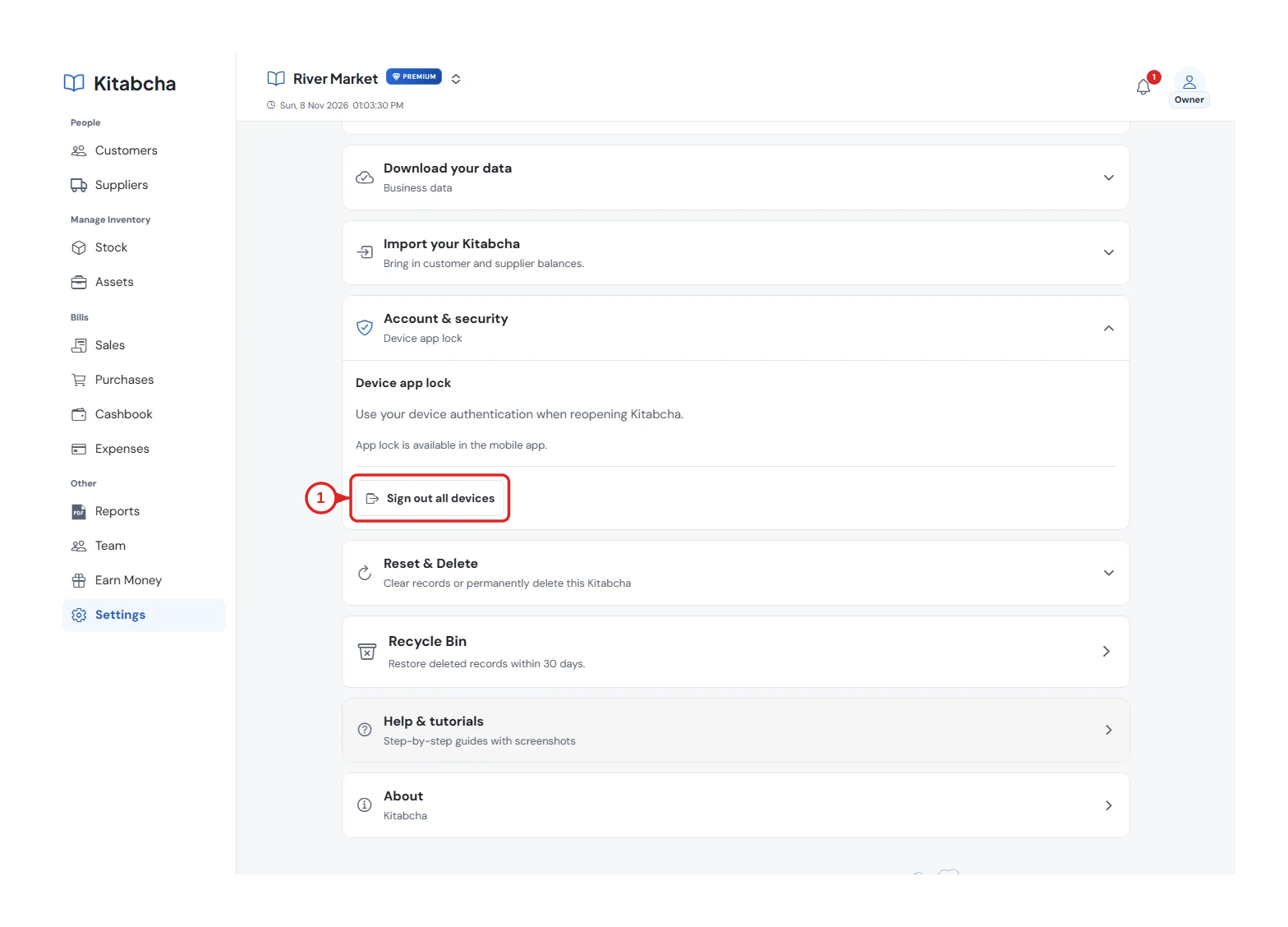
- Manage signed-in devices
Need a hand?
Tell us which step you reached, your device and what happened. Never share sign-in codes or private records in public messages.
WhatsApp supportEmail support