
Account & team · Kitabcha help
Invite your team and give Viewers limited read-only access
Manage team invitations, choose a role and select the sections each read-only Viewer can see.
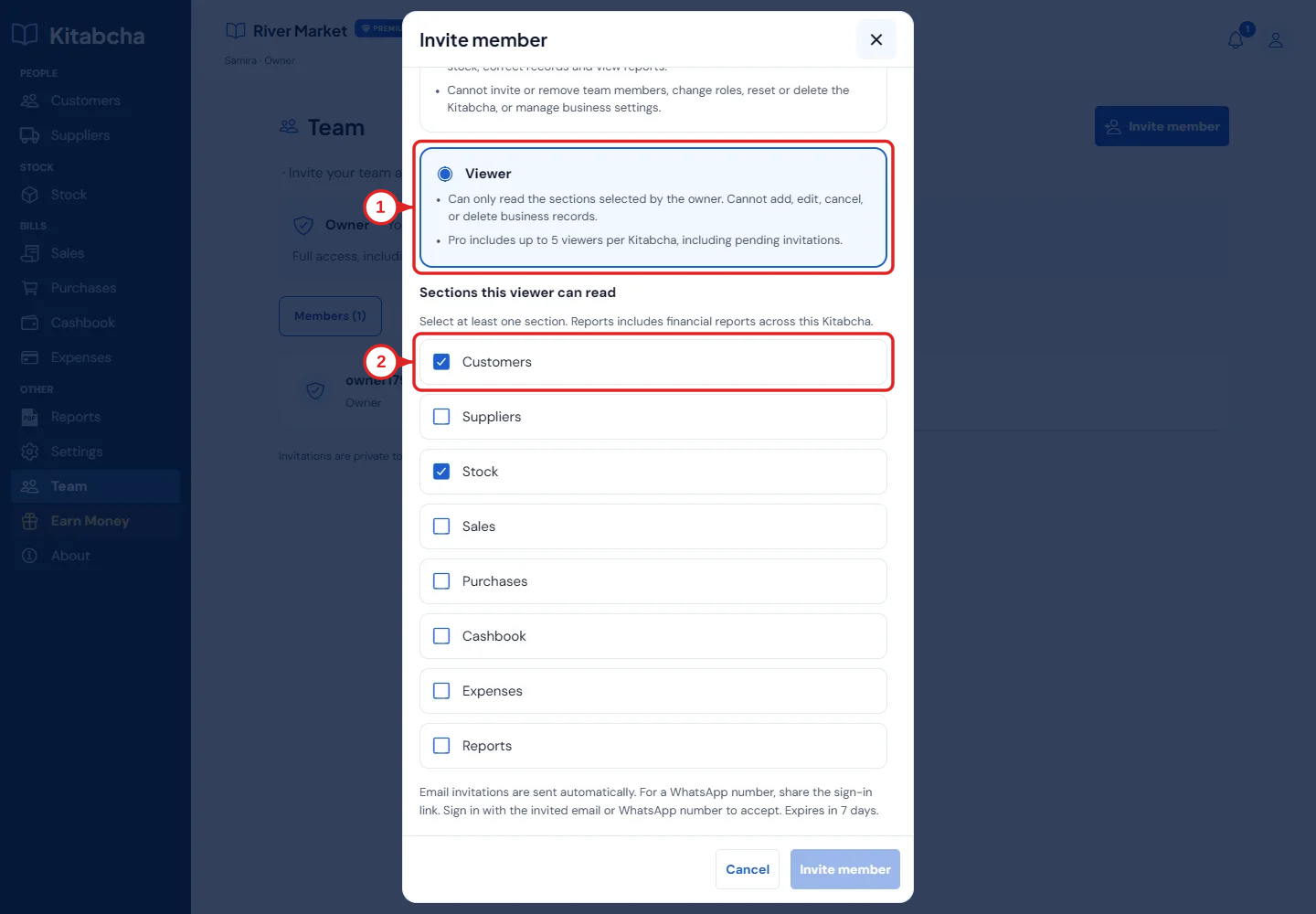
- Viewer role
- Choose visible sections
Invite a member
- Open Team as the business owner and select Invite member. Enter the member’s name and email or WhatsApp number.
- Read each available role’s description before selecting it. Choose the least access the person needs.
- For a Viewer, check the sections they may read, such as Customers or Stock. At least one permitted section must be selected.
- Review the contact and permissions, then send the invitation. The invited person signs in with that contact and accepts it.
- Use the Invitations tab to review pending invitations and the available renewal or cancellation actions.
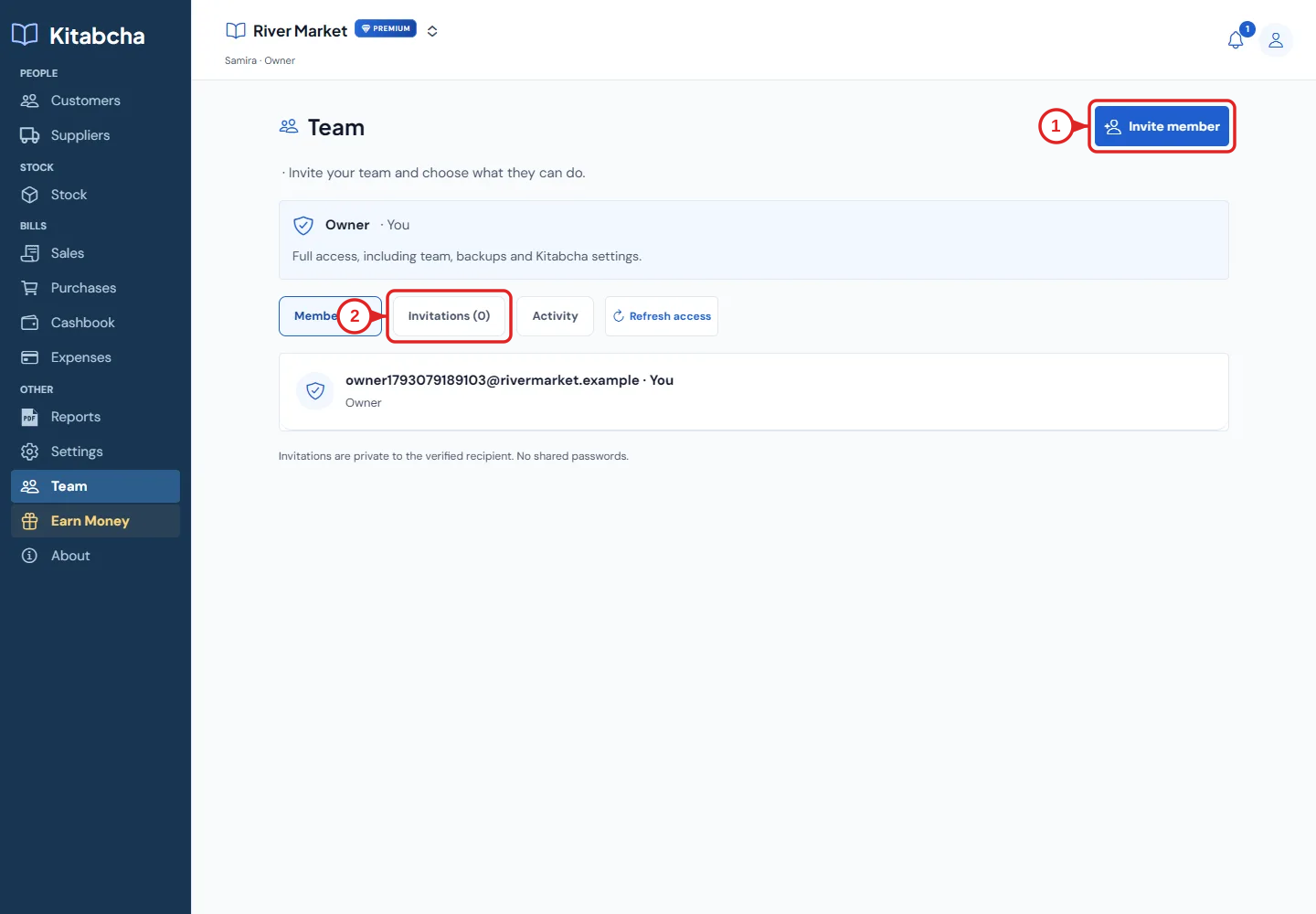
- Invite a member
- Manage invitations
Viewer limits and permissions
- Paid members can invite up to five Viewers per Kitabcha, including pending invitations. Check the current plan if the invite action is unavailable.
- Viewers can read only the sections checked by the owner. They cannot add, edit or cancel business records.
- Keep financial sections unchecked when the Viewer does not need them. Review access when someone changes duties or leaves the business.
- Role restrictions apply to the business they joined. Do not share the owner’s verification code to bypass a restricted role.
Need a hand?
Tell us which step you reached and what happened. Keep sign-in codes and private business data out of public messages.
WhatsApp supportEmail support