
Account & team · Kitabcha help
Update your profile and switch between businesses
Edit business details and logo, manage email and WhatsApp sign-in contacts, and open the right Kitabcha.
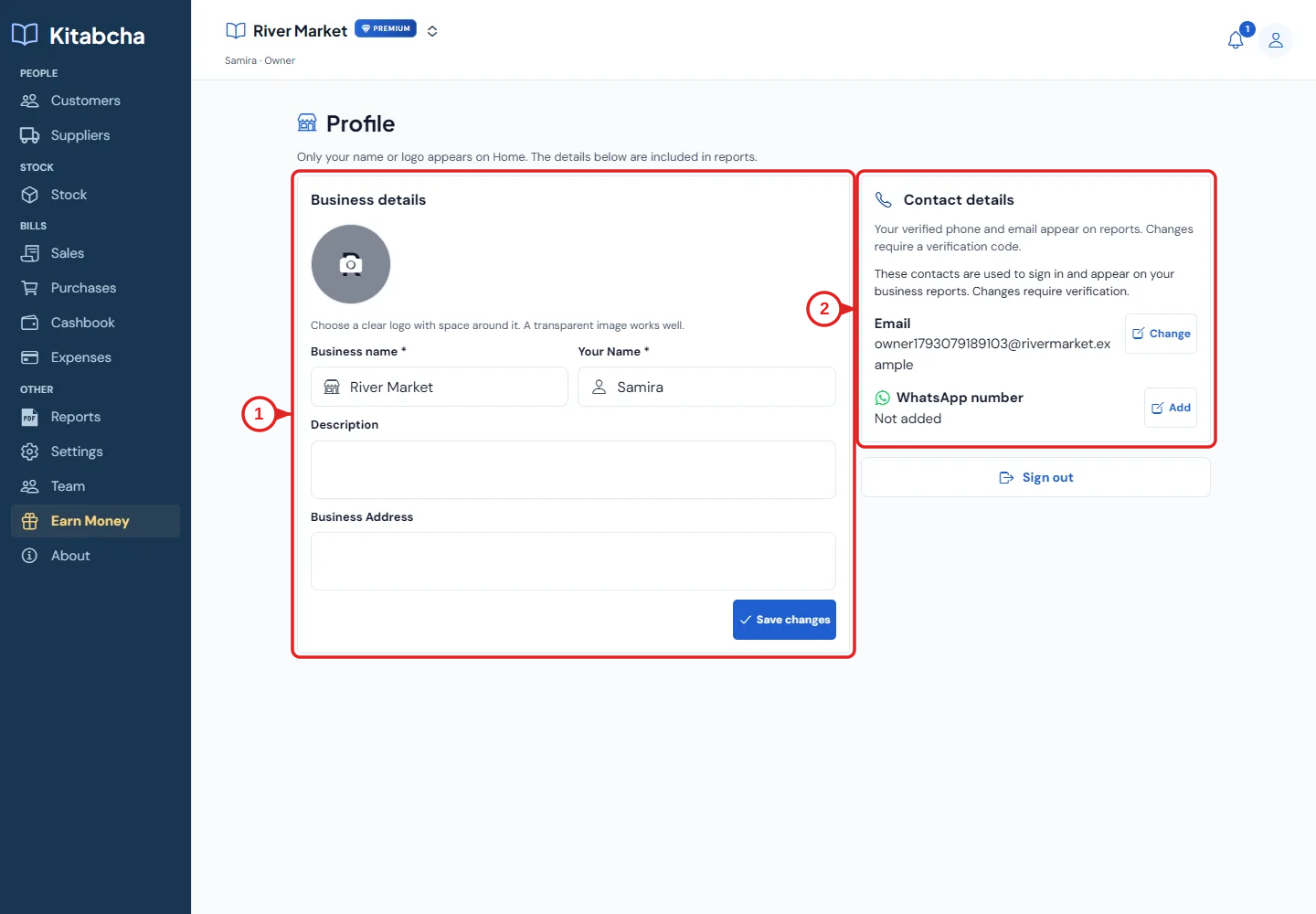
- Business details
- Verified sign-in contacts
Update the details on reports
- Open Profile from your account controls. Edit the business name, your name, description, address or photo as needed.
- Use a clear business logo or photo in a supported image format. Wait for the upload to finish and select Save changes.
- Verify the details in a newly generated invoice or report. An old PDF will still contain the old information.
Manage sign-in contacts
- In Contact details, use the available change or add action for Email or WhatsApp number. Verify a new contact using its code.
- Add a second sign-in method if useful, but do not use a contact you do not control. Never share verification codes.
- Use Sign out when you finish on a shared device. Do not delete the business merely to sign out.
Switch Kitabcha
- Use the switch control beside the current business name to choose another Kitabcha you own or have joined.
- Check the business name and your role before entering a transaction. Each Kitabcha has its own people, balances, stock and team access.
- If a previously selected person is unavailable after switching, choose a person from the current business rather than trying to reuse the old record link.
Need a hand?
Tell us which step you reached and what happened. Keep sign-in codes and private business data out of public messages.
WhatsApp supportEmail support