
Account & team · Kitabcha help
Enable notifications and choose your alert preferences
Set email and push preferences, allow browser or device permissions, and troubleshoot unsupported browsers such as UC Browser.
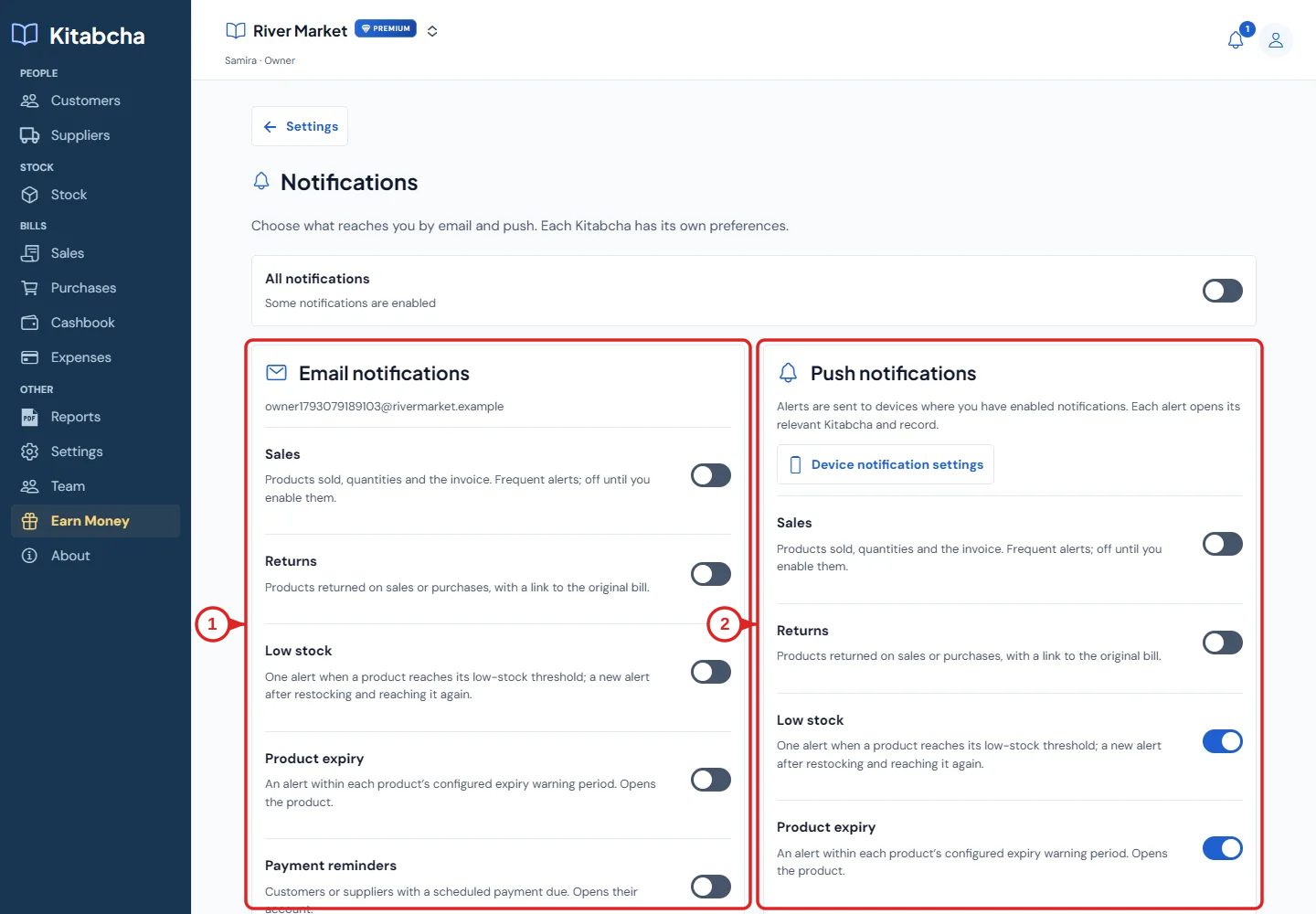
- Email preferences
- Push permission and preferences
Choose what you want to receive
- Open Settings, then Notifications. Review the All notifications control and the separate Email notifications and Push notifications preferences.
- Choose alerts such as sales, returns, low stock, product expiry or payment reminders where shown. These preferences belong to each Kitabcha.
- For push notifications, open Device notification settings and allow permission on the current device or browser. Permission and account preferences are separate requirements.
- Use the bell to read notifications in the app. Turning on email alerts does not enable browser push permission.
When push cannot be enabled
- Check that you are using HTTPS and that notifications are not blocked in your device settings or browser site permissions.
- Some browsers, including versions of UC Browser, do not provide the web push capabilities Kitabcha needs. A permission switch cannot add a missing browser feature.
- Try a current supported browser or the installed Kitabcha app. On iPhone web, use Safari’s Add to Home Screen flow when web push requires an installed web app.
- If registration fails in the native app, note the app version, iOS or Android version and the exact error. Contact support with those details rather than repeatedly changing your business data.
Need a hand?
Tell us which step you reached and what happened. Keep sign-in codes and private business data out of public messages.
WhatsApp supportEmail support