
Use a barcode to find a product
Attach a barcode to a product and scan it when selecting goods.
Save the barcode
- Open or add a product in Stock. Enter its barcode or use the scanner where offered.
- Save the product so Kitabcha can match the code next time.
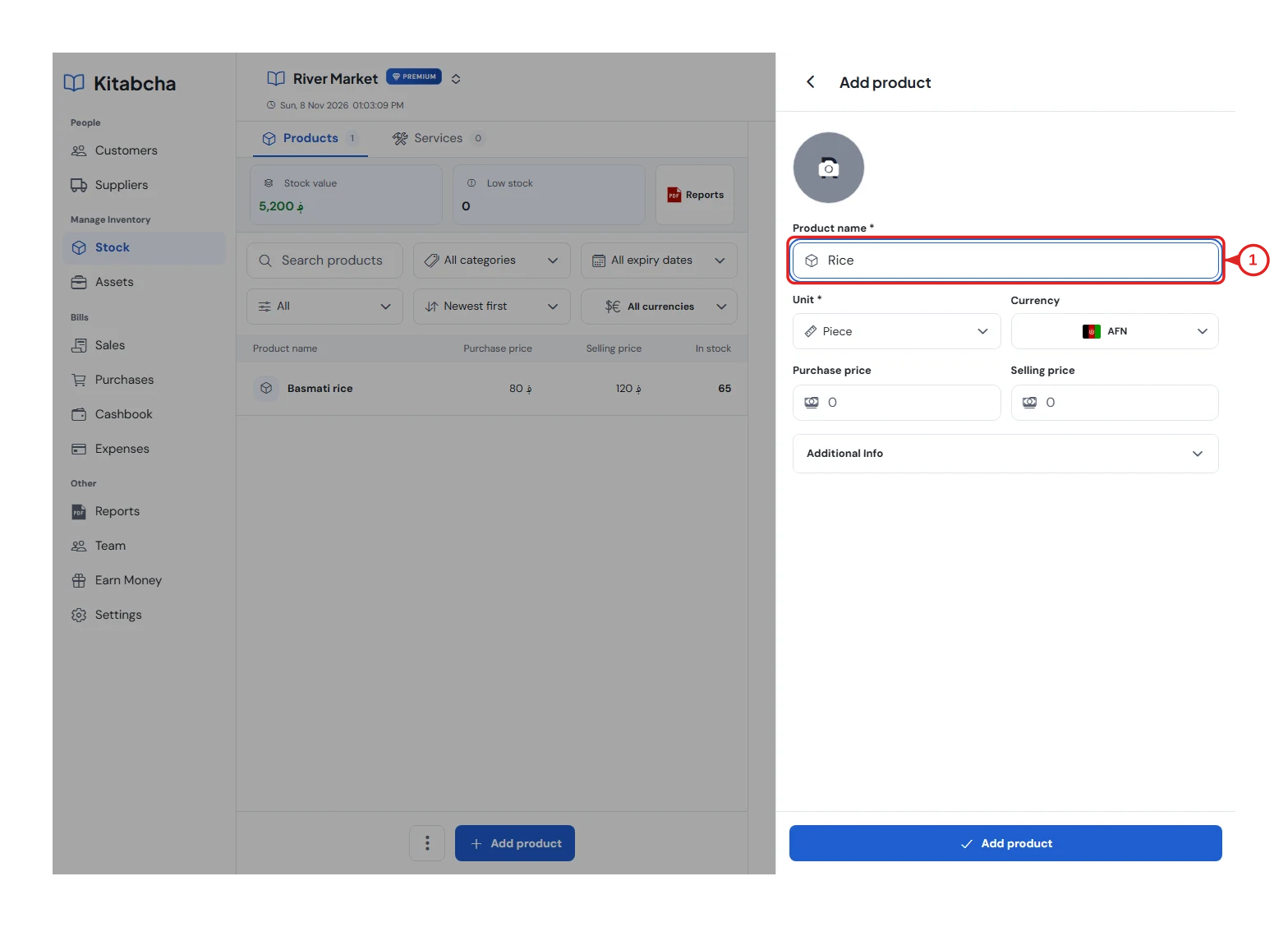
- Product details
Scan during a sale
- Open the product picker in a sale and select the barcode scanner. Allow camera access when asked.
- Point the camera at a clear, well-lit code. Select the matched product and check the quantity before adding it.
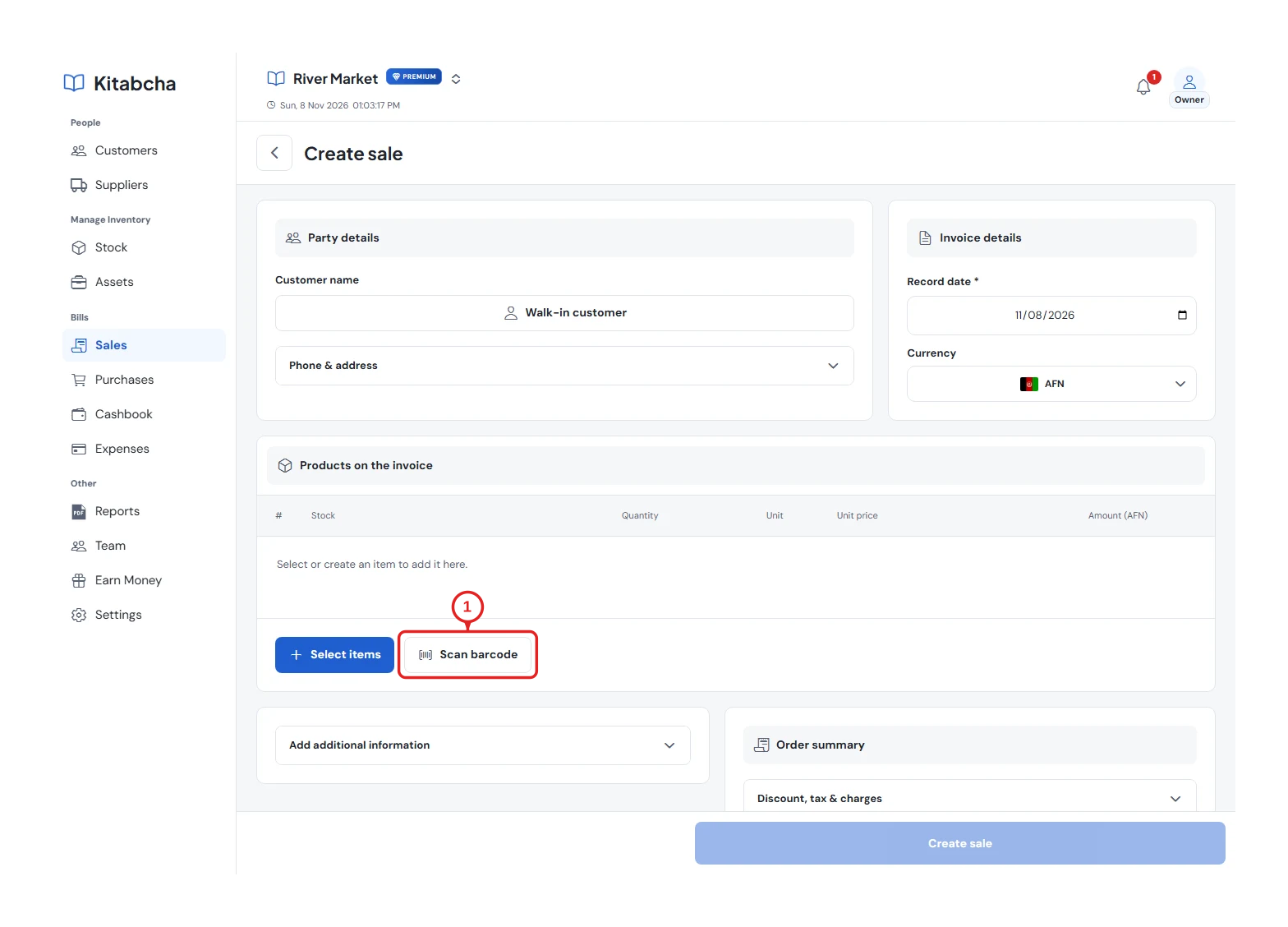
- Scan a barcode
If it is not found
- Check that the barcode belongs to a product in the current Kitabcha. You can type the code or search by product name instead.
- If the camera does not open, check the device or browser's camera permission. Scanning does not save the sale by itself.
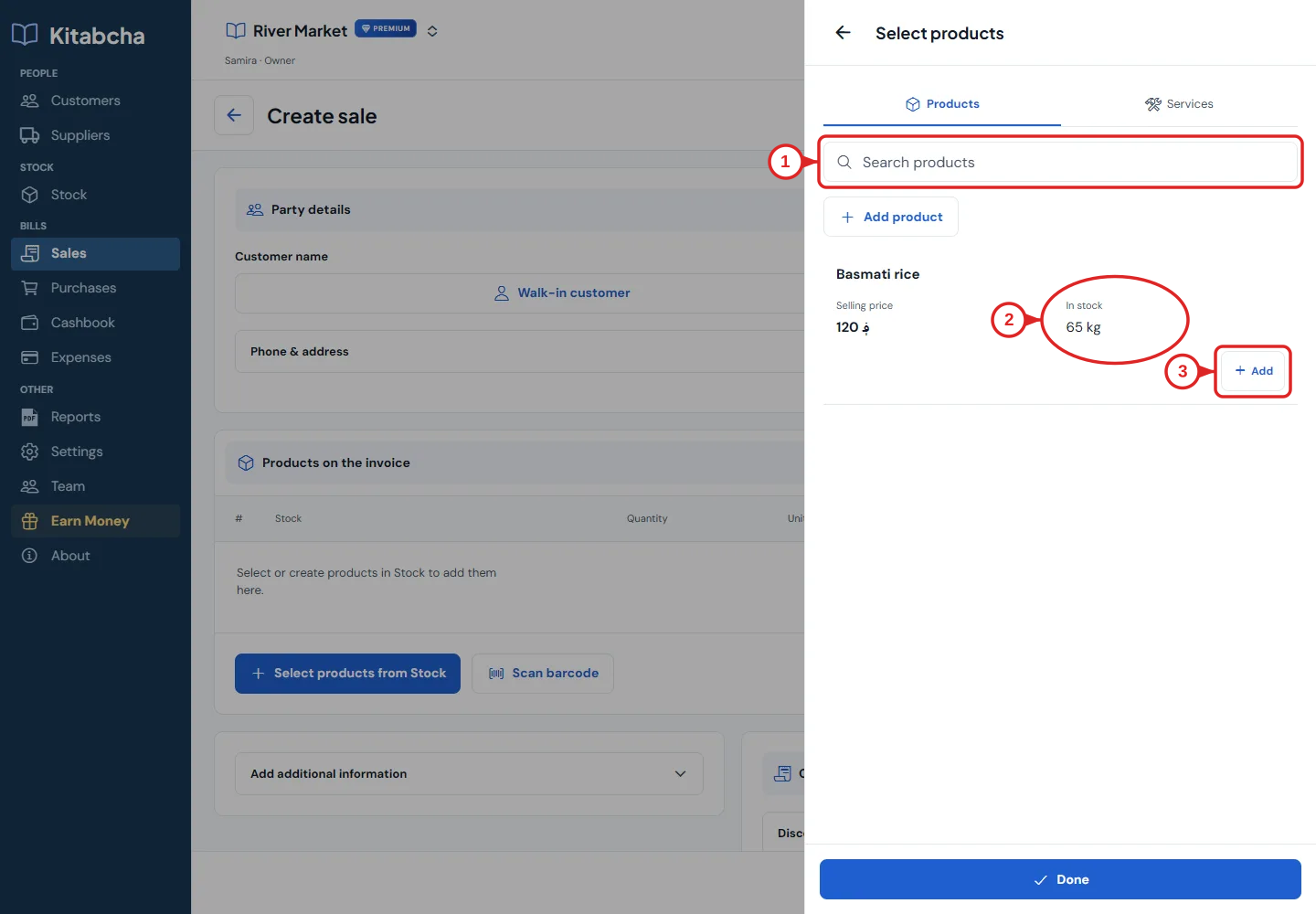
- Choose a product
Need a hand?
Tell us which step you reached, your device and what happened. Never share sign-in codes or private records in public messages.
WhatsApp supportEmail support