
Sales & stock · Kitabcha help
Create sales, invoices and quotations
Add products to a sale, respect available stock, record paid or credit amounts, and manage invoices and quotations.
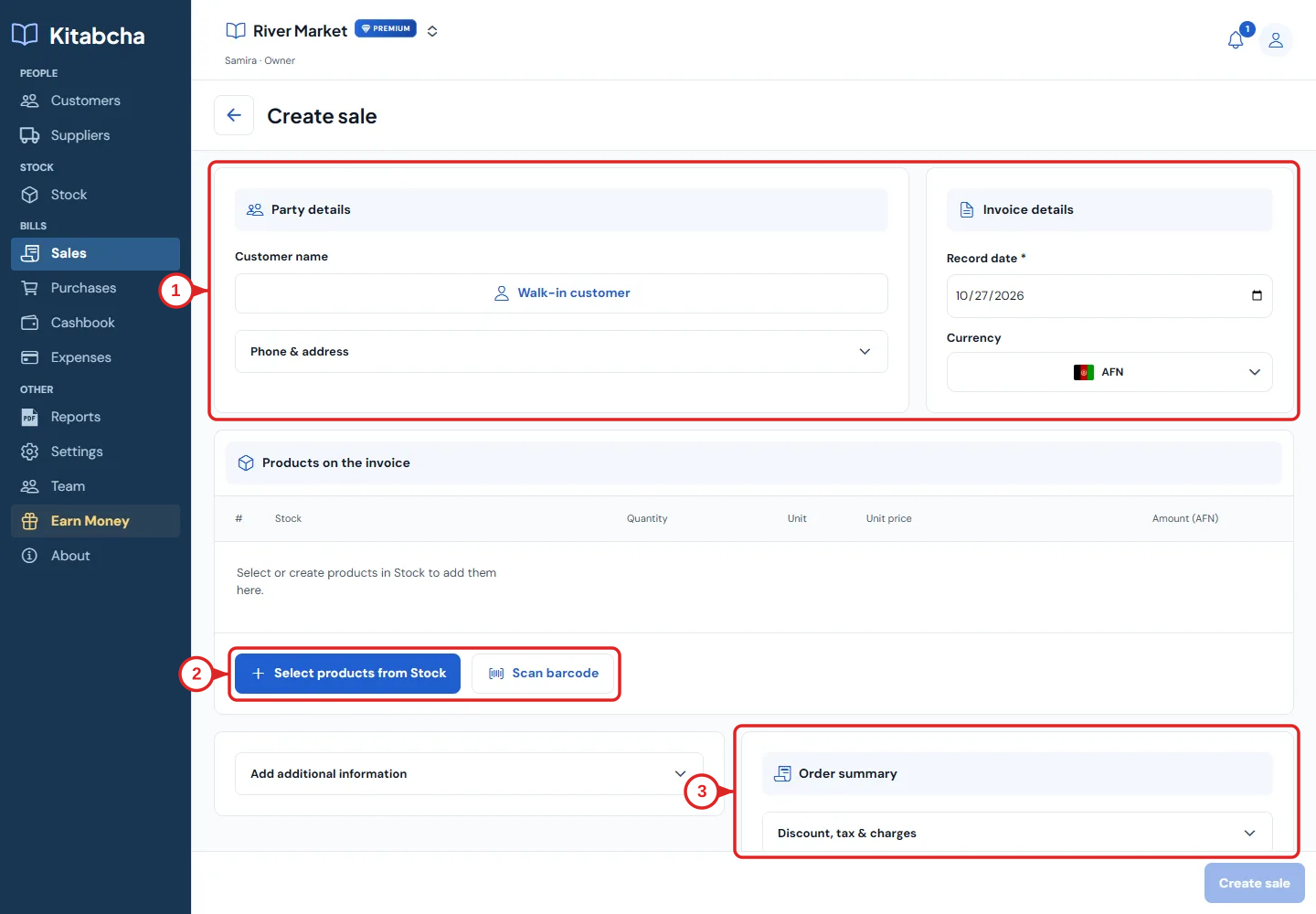
- Customer and currency
- Add products or scan
- Review totals before saving
Create a sale
- Open Sales and select Add sale. Choose the customer, or use a walk-in customer for a sale without a named account.
- Check the record date and currency. Select products from Stock or use the barcode option when available.
- Use Add to increase a product’s quantity. The feedback shows the product and count. Use the remove control to reduce the quantity or remove the line.
- Enter quantity and price, then review discounts, charges and the order summary. For tracked products, the sale quantity cannot exceed available stock.
- Record the amount paid and payment mode if money has already been received. An unpaid or partly paid balance remains due from the named customer.
- Review the total and create the sale. Open the saved invoice to share it, record a later payment or view its details.
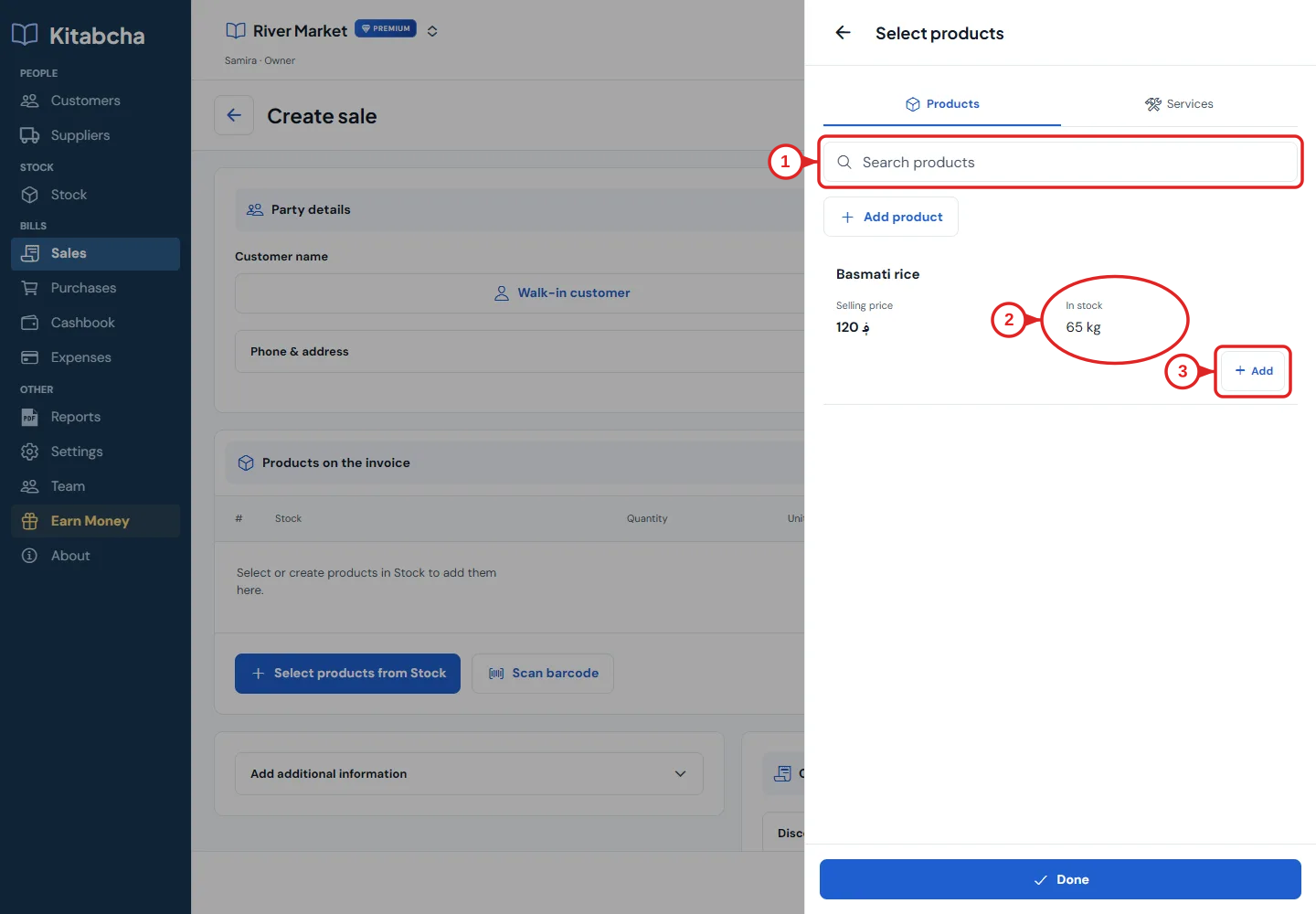
- Find your product
- Check available stock
- Add a quantity
Use quotations and returns carefully
- Use Add quotation for an offer before a confirmed sale. A quotation is different from an invoice; check its status before treating it as a sale.
- Use the available return action on the original sale when goods are returned. Check the quantities and any money refunded.
- Do not add a second sale to correct a payment. Open the invoice and use its payment action, or correct the original entry.
Need a hand?
Tell us which step you reached and what happened. Keep sign-in codes and private business data out of public messages.
WhatsApp supportEmail support