
Prepare a quotation
Give a customer a price offer before recording a confirmed sale.
Create the offer
- Open Sales, then Quotations, and choose Add quotation.
- Choose the customer and currency. Add products or services, quantities and offered prices.
- Set the offer date, valid-until date and any notes or terms the customer needs.
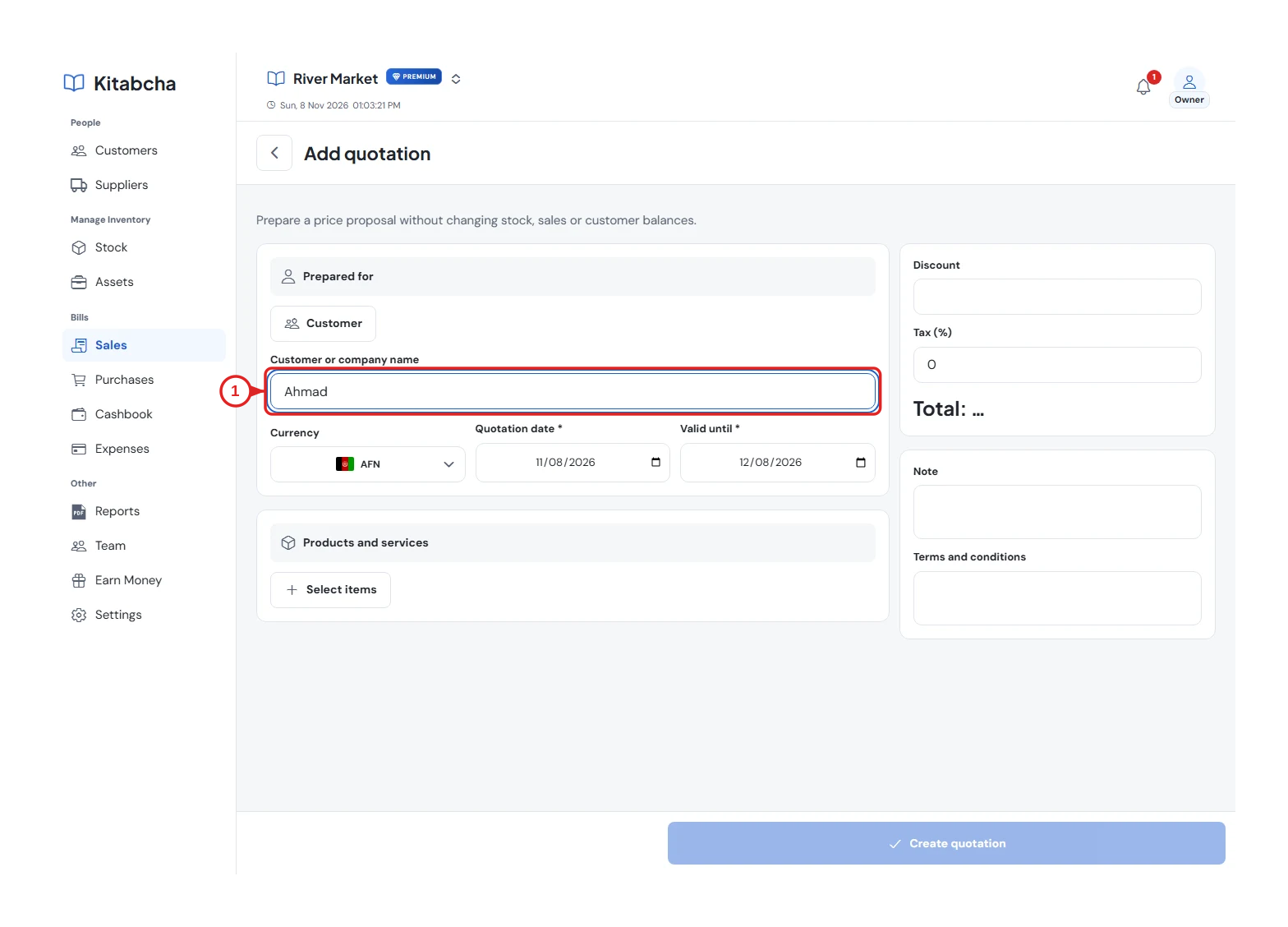
- Quotation details
Review and share
- Check the total, discount and any extra charges, then save the quotation.
- Open it to download or share the offer with the customer. A quotation alone is not a sale or a payment.
- Use the available layout choices and Print action if you need a printed quotation.
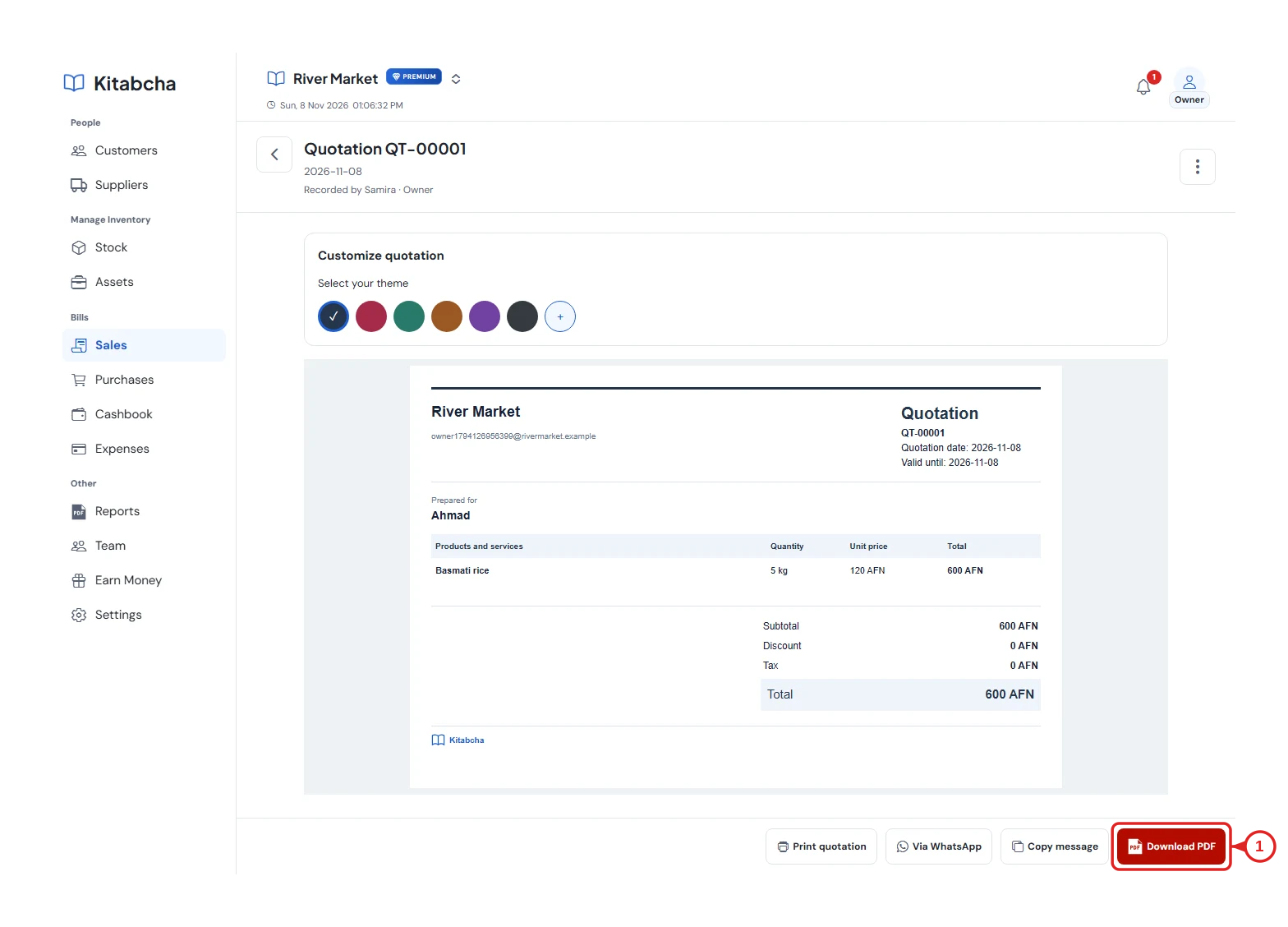
- Choose Download PDF
When the customer accepts
- Create a sale using the agreed products, quantities and prices from the quotation.
- Review the sale, available stock and payment details before saving. Keep an unaccepted offer as a quotation rather than recording money you have not received.
Need a hand?
Tell us which step you reached, your device and what happened. Never share sign-in codes or private records in public messages.
WhatsApp supportEmail support