
Sales & stock · Help
Record returns, partial returns and refunds
Return goods against the original sale or purchase, respect returnable quantities and distinguish stock changes from refunded money.
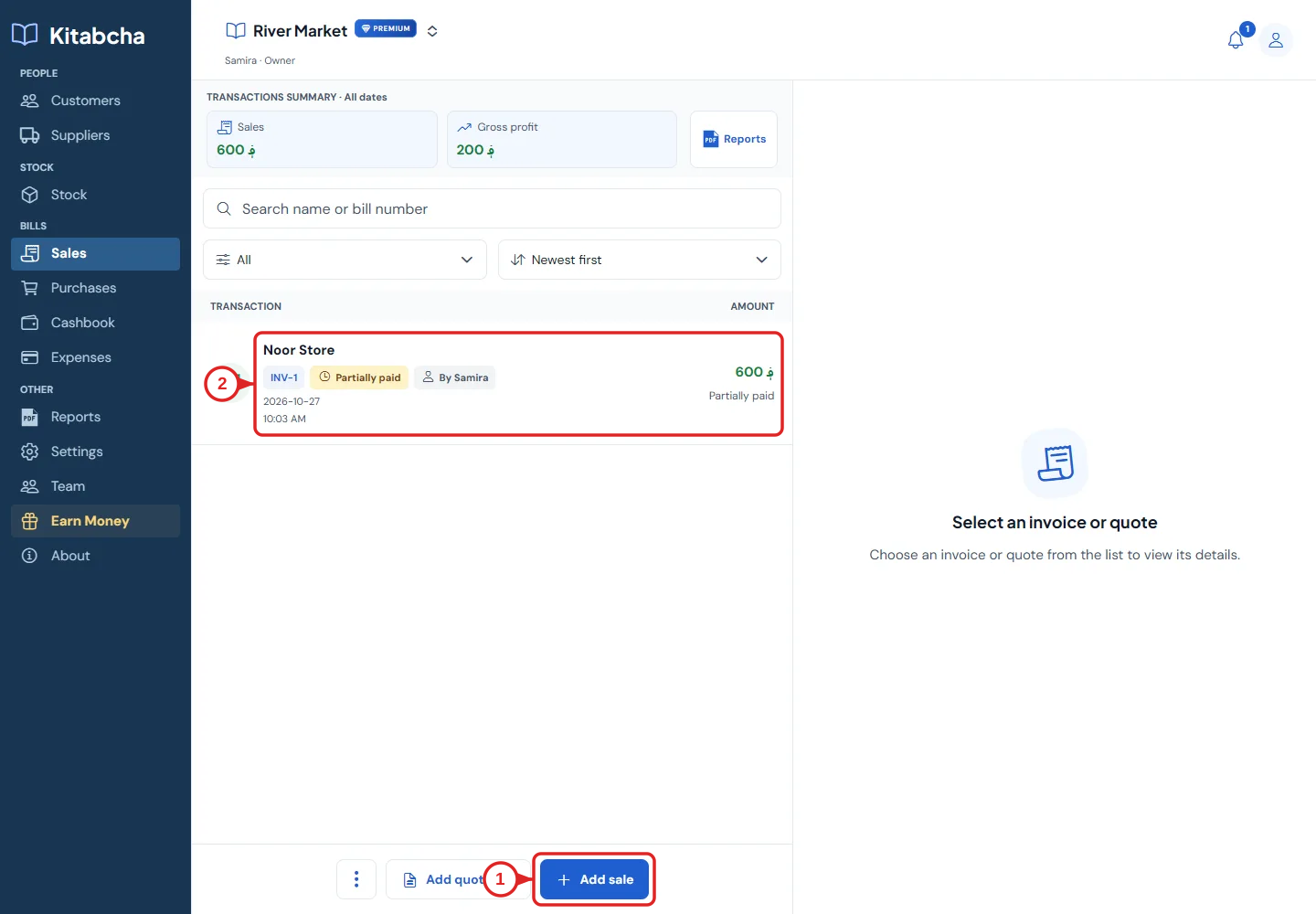
- Add a sale
- Sale and payment status
Find the original bill
- Open Sales for a customer return or Purchases for goods returned to a supplier. Open the original saved bill and its available return action.
- Confirm the person, currency, products and date. A new unrelated sale or purchase does not correctly describe a return.
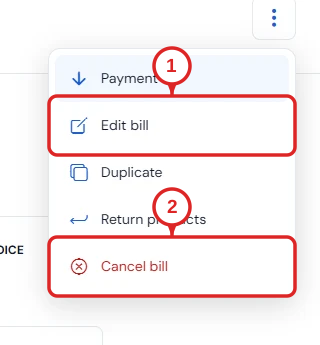
- Edit the record
- Cancel the record
Choose the returned quantities
- Select the products being returned and enter only the quantities actually returned. Use the same units as the original bill.
- A partial return may include fewer products or fewer units. The eligible quantity is limited by the original bill and earlier returns.
- Review the return amount and any available refund choices before confirming. Stock and financial effects depend on the original record and selected return.
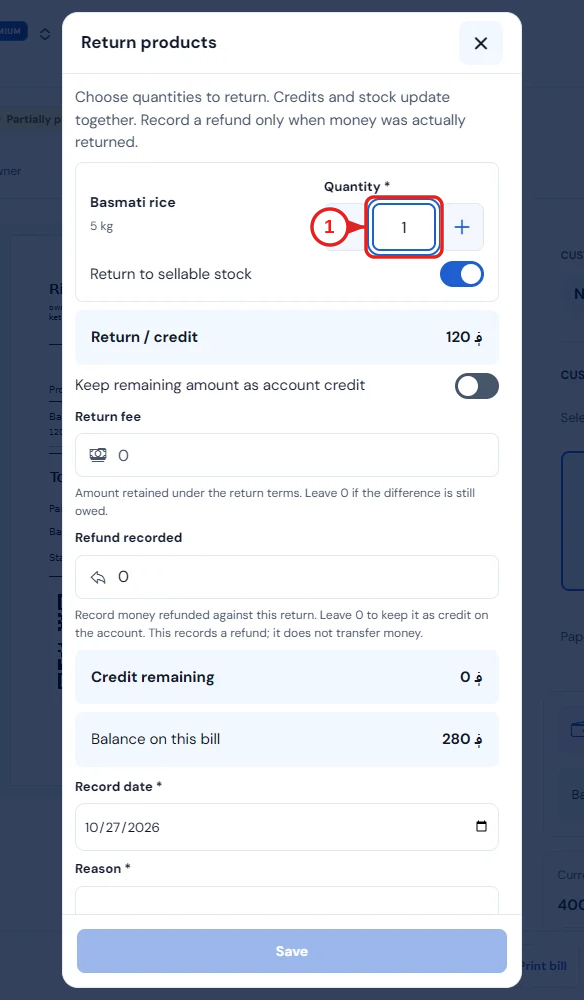
- Add a quantity
Check money separately
- Returning goods does not prove cash was refunded. Record actual refunded money through the available return or payment controls and check the cashbook.
- If an unpaid bill is reduced by a return, the outstanding debt can decrease without any cash movement. Do not create a fictitious cash refund.
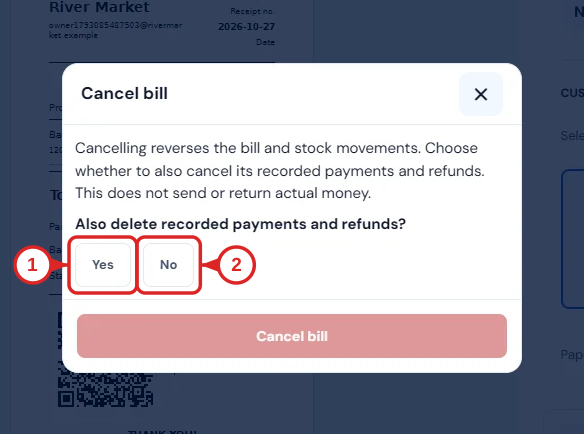
- Delete linked payments
- Keep linked payments
Verify the result
- Compare the original bill, return, person’s balance and stock quantity. Check the cashbook only for money that actually moved.
- Use cancellation for a record that should not exist, and a return for goods that were actually sold or bought and then returned. Check linked payments before cancelling.
Need a hand?
Tell us which step you reached, your device and what happened. Never share sign-in codes or private records in public messages.
WhatsApp supportEmail support